Wood And Weight Info v1.0.0.0 LS25
Wood And Weight Info v1.0.0.0 LS25
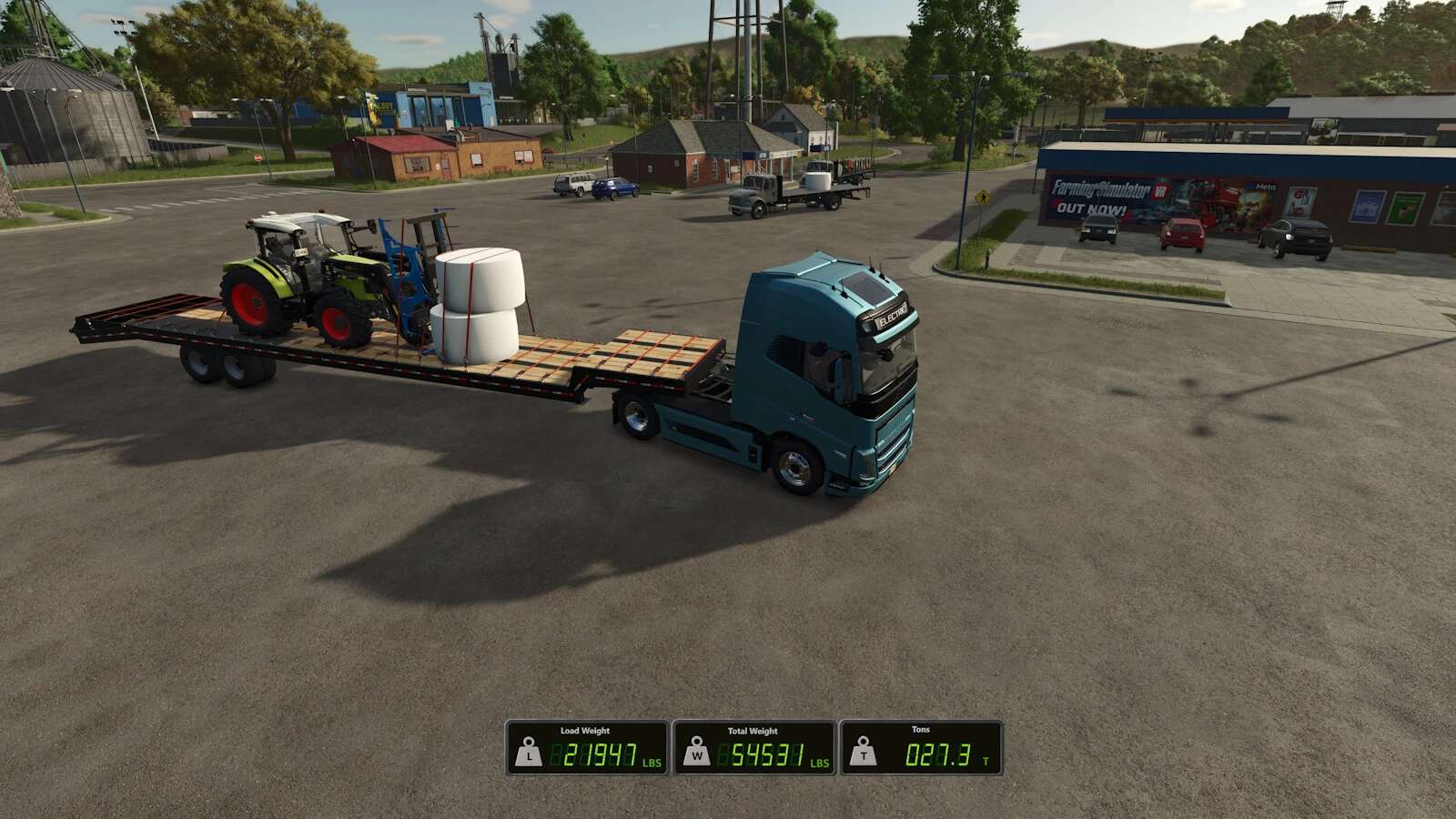
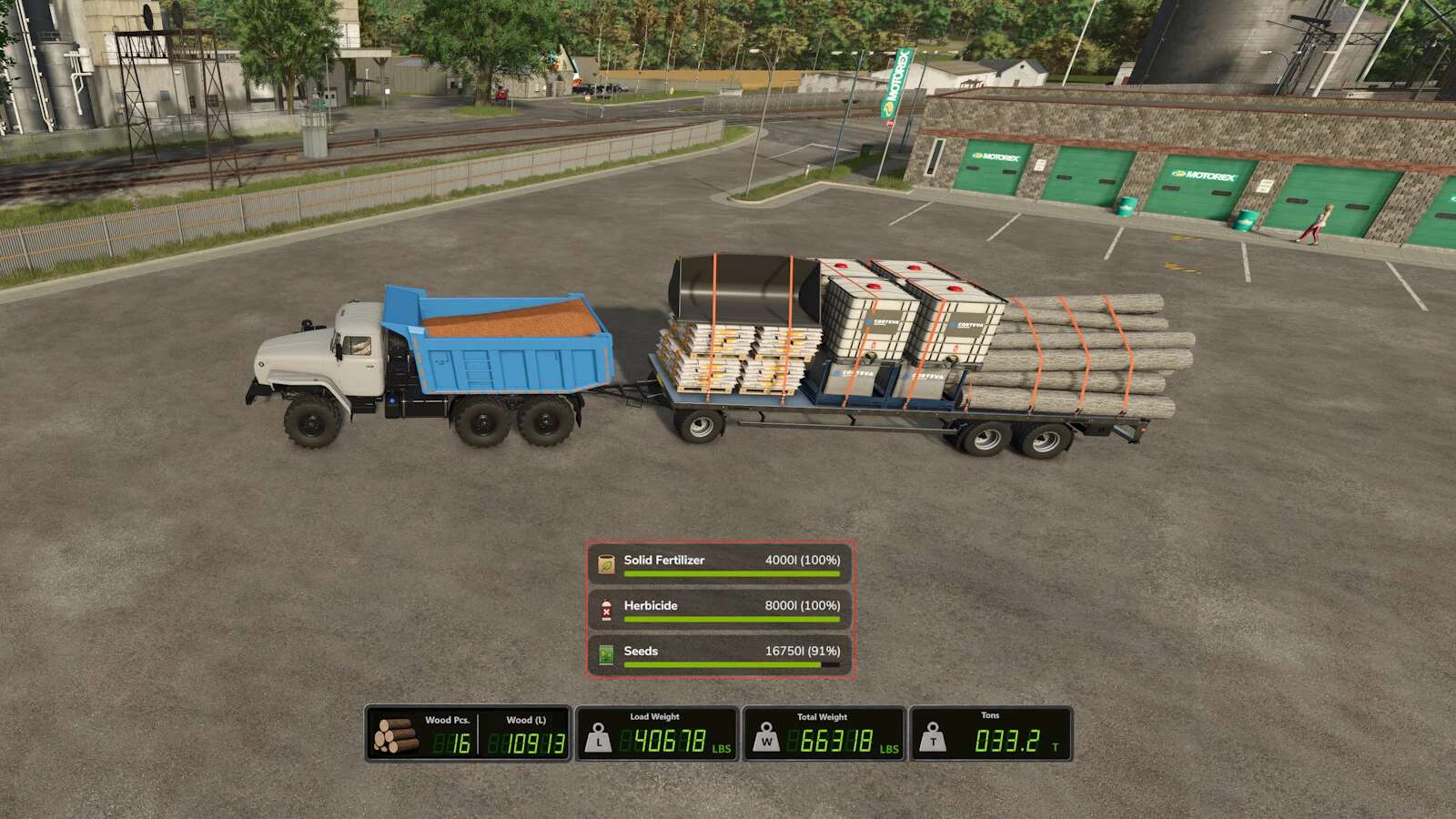
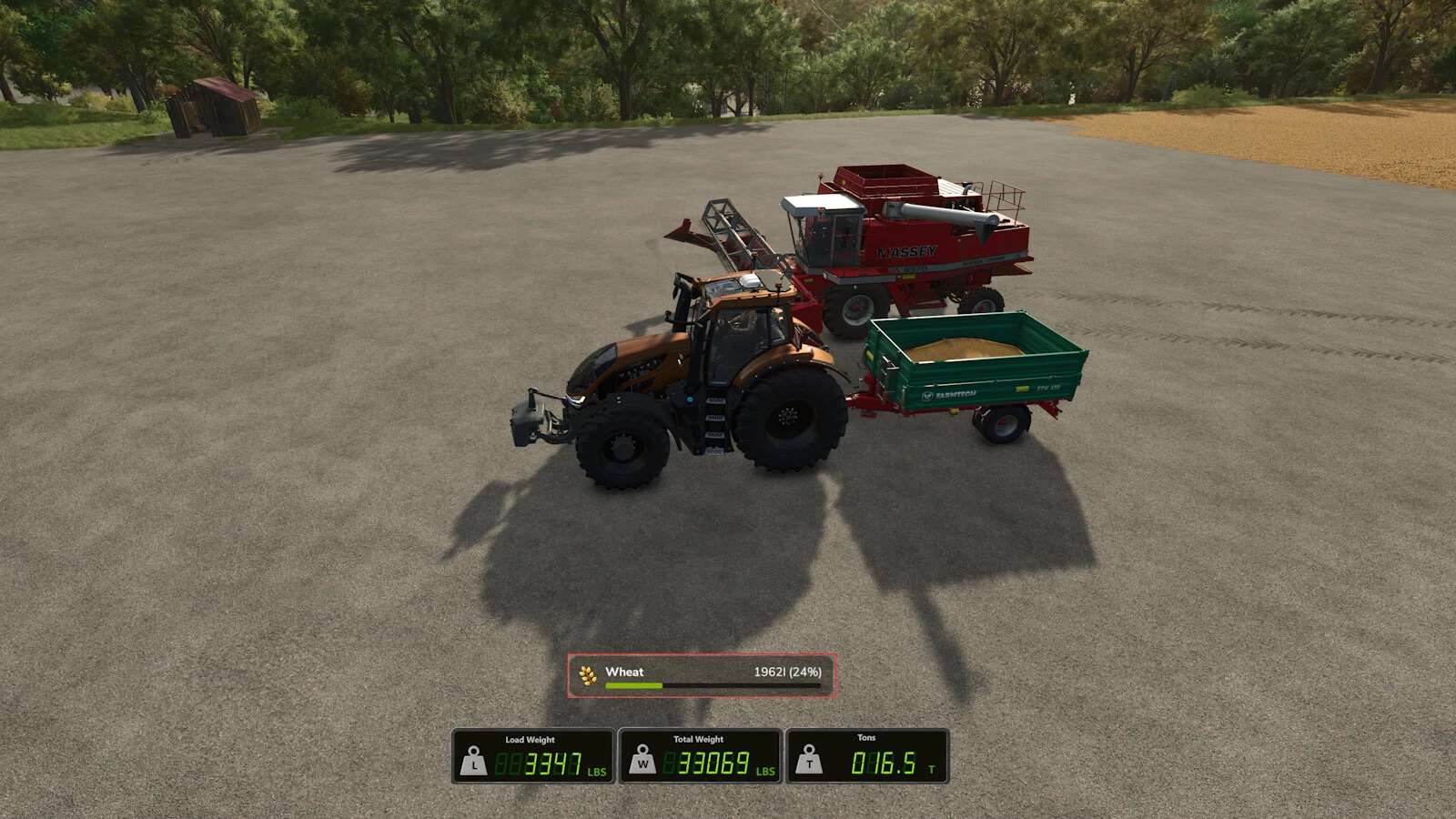
A lightweight HUD overlay built for wood/forestry data and weight information – shows your strapped wood volume/piece count, as well as any strapped pallets/machinery and bulk materials at a glance while driving, so you always know exactly what you’re hauling, and how much it weighs.
Primary display function (wood):
Wood pieces: live count of physically strapped logs
Wood volume (L): total volume of strapped wood
As an added feature, the HUD also includes full cargo weight information for all vehicles:
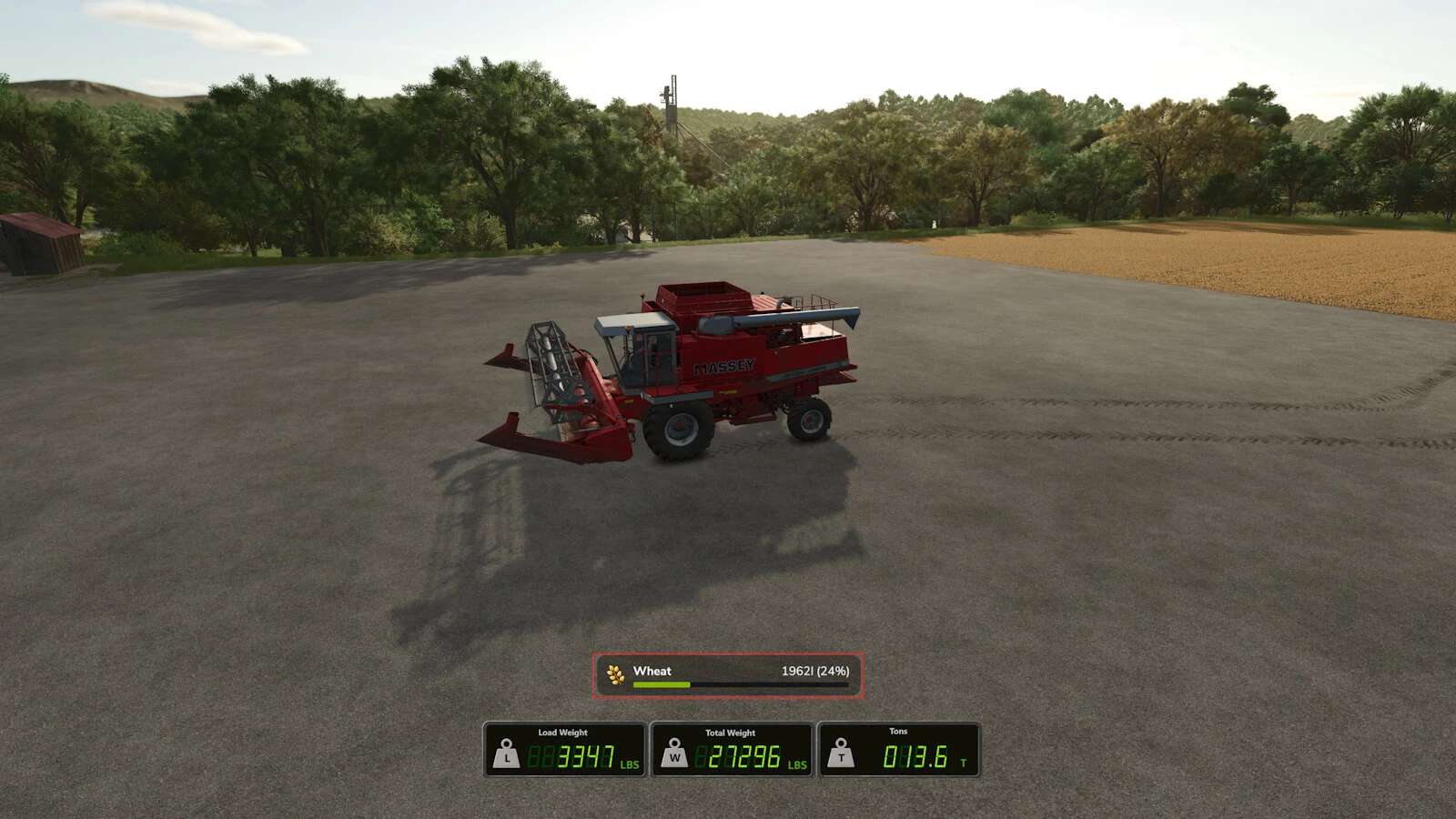
Total Weight: Weight of the bare vehicle and attached implements + Load mass.
Load: Current “load/cargo” mass across the entire current vehicle chain: (Fill units, and all strapped down vehicle attachments, wood, pallets, vehicles, and more!)
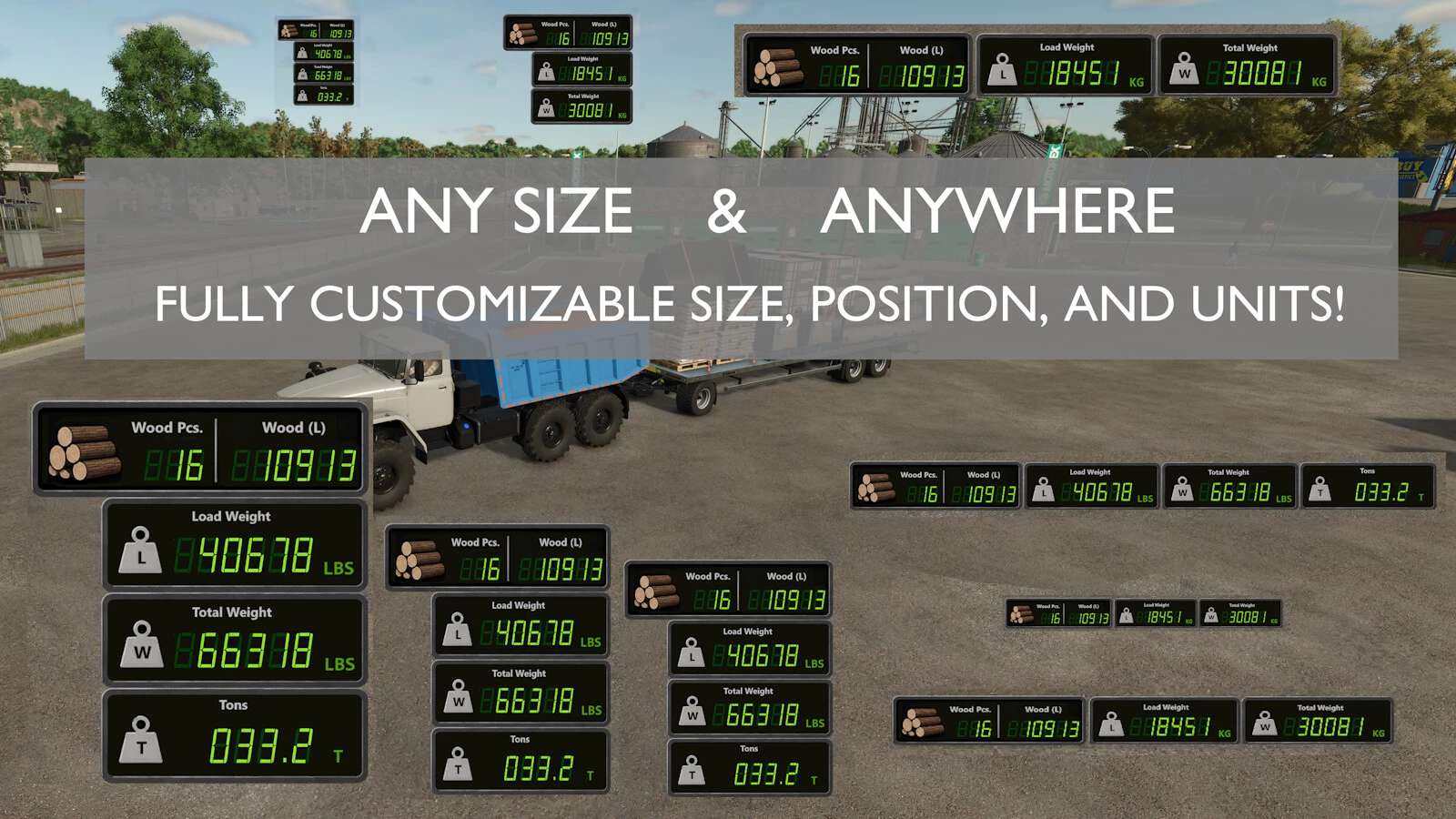
Weight shown in metric (kg) or imperial (lbs), plus short tons (t) available in imperial!
You can choose any size and any position! Use the keybinds (unbound by default) to resize and reposition the display, and switch it between vertical and horizontal in the settings menu! Completely customizable!
Any mass data (non fill-unit, i.e. wood logs, bales, pallets, vehicles, etc) are only displayed when cargo is strapped down with tension belts. Fill unit mass is calculated automatically.
The entire HUD hides automatically when on foot, and can be toggled on and off when in a vehicle with a keybind.
Settings:
Open the in-game Settings menu and look for the “Wood and Weight Info” section under General Settings:
Orientation: Show the HUD boxes stacked vertically, or side by side horizontally.
Mass Units: Metric (kg) or Imperial (lbs and short tons).
Keybinds:
Toggle HUD: Show or hide the overlay
Reposition HUD: Move the HUD display using the mouse cursor
Increase HUD Size: Make the HUD larger
Decrease HUD Size: Make the HUD smaller
All keybinds are unbound by default. Assign them in the in-game Controls menu under “Wood and Weight Info”.
HUD Reposition: Press the Reposition HUD key to enter reposition mode. The mouse cursor appears automatically, with the reposition box. Move the mouse to place the HUD, then LEFT-CLICK to save.
Note: Total mass numbers may differ with the readout from any in-game scalehouse due to the math GIANTS uses to calculate the mass on the scales. This issue is only apparent in very specific cases (multi-vehicle and fillunit chains loaded onto the back of a trailer), and should not be a problem otherwise.
Credits: mike1000195